
Set your own knockout bracket for a pickleball tournament
Step-by-step guide for organizers to choose knockout pairings on DinkDink: set a pairing Template when creating the tournament (e.g. 1st of pool A vs 2nd of pool B), then swap slots and lock seeds once the bracket exists.
- Choose the Hybrid format
- Set players per pool and choose Template pairing
- Set teams advancing and pool count
- Pick a preset
- Adjust any pairing
- Create, then generate pools
- After pool play, generate the bracket
- Confirm
- The bracket follows your template
- Change the order after the bracket exists
- Tap two slots to swap
- Lock a seed
- Tap Done
- All set
This guide is for organizers who want to decide the knockout matchups themselves instead of letting the app seed by results. There are two ways, and you can use either or both:
- Option A, when creating the tournament (steps 1–9): choose Template to set who plays whom in advance, e.g. 1st of pool A vs 2nd of pool B.
- Option B, once the bracket exists (steps 10–14): swap teams and lock seeds.
Steps shared with How to create a pickleball tournament are kept short. The numbered red boxes in each screenshot show where to tap or type.
Step 1. Choose the Hybrid format
In step 1 of Create, fill in the name, date and venue as usual. Choose the Hybrid format (1): pool play first, then a knockout bracket.
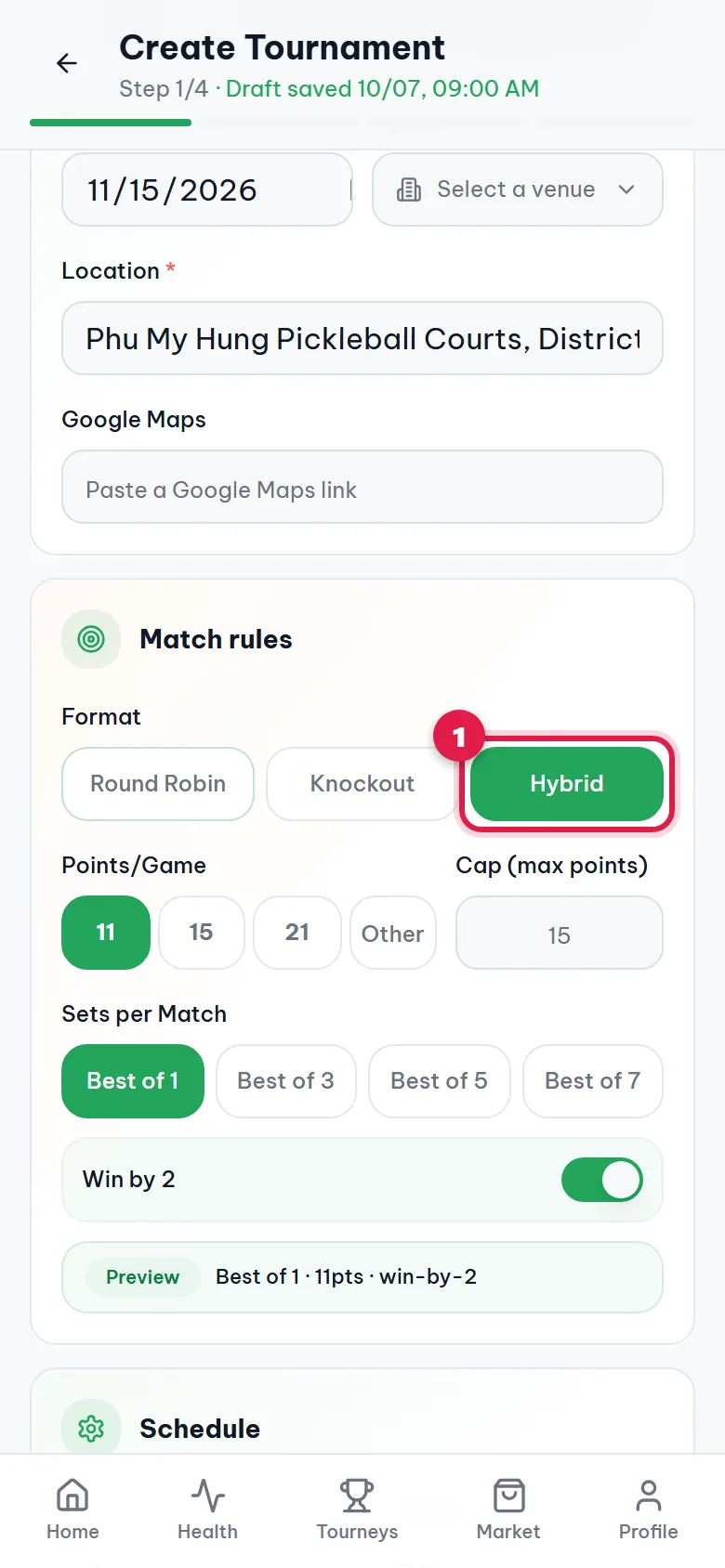
Step 2. Set players per pool and choose Template pairing
Scroll down and set Players per Pool (1), for example 4. Under Knockout pairing, tap Template (2). Auto seed lets the app seed teams by results. Template means you decide round-1 matchups in advance. Then tap Next.
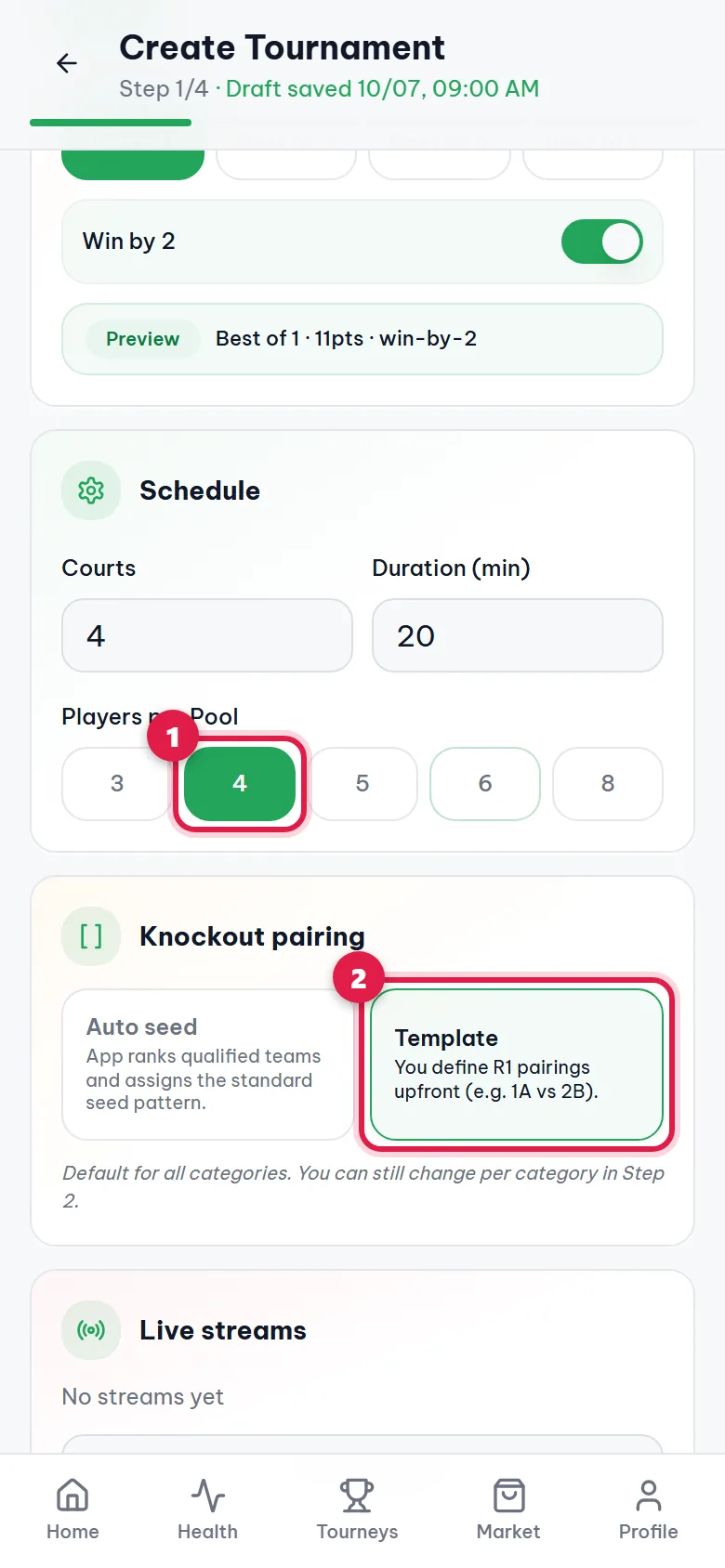
Step 3. Set teams advancing and pool count
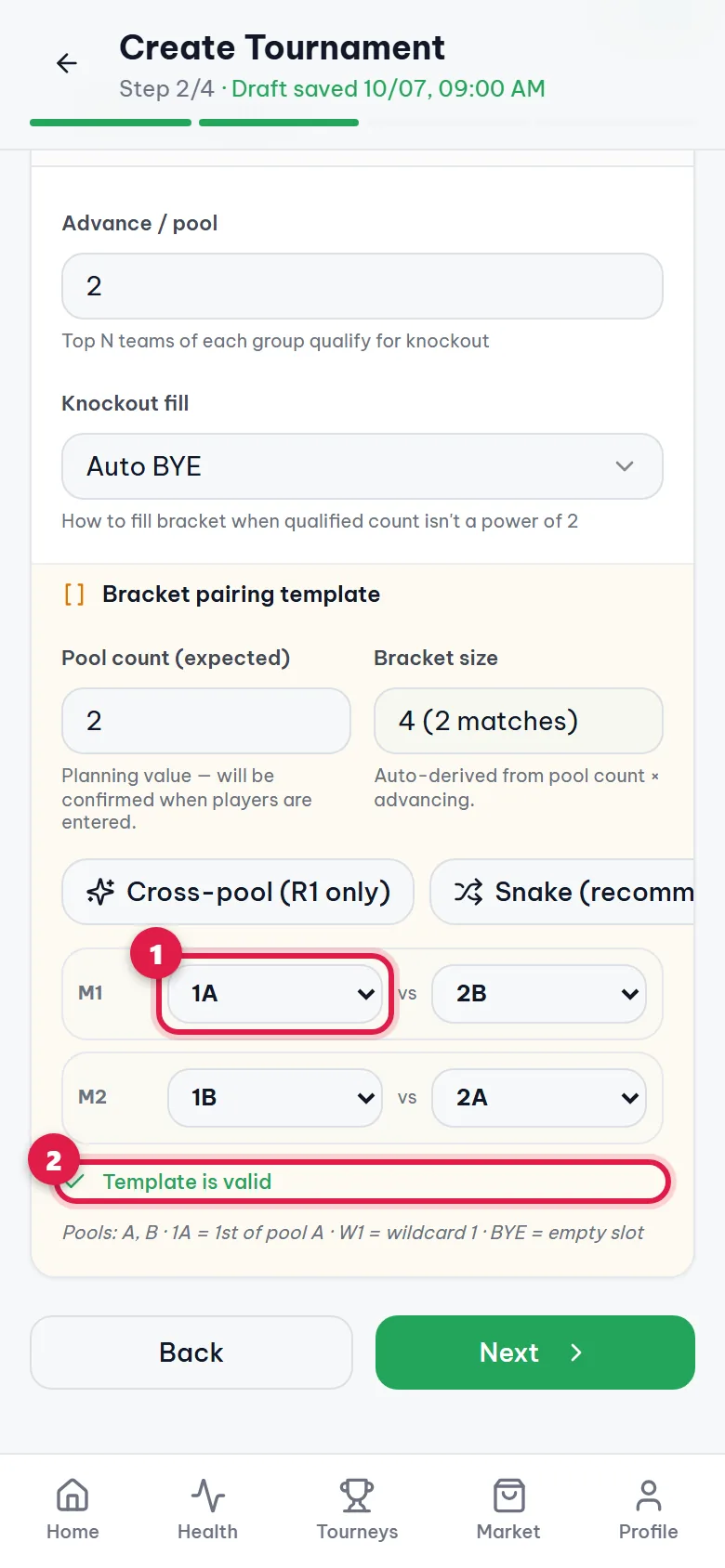
In step 2, add a category (e.g. Men's Doubles). The Bracket pairing template box appears below it. Enter how many teams per pool advance (1) and the Pool count (expected) (2). For example, 8 teams in 2 pools with 2 advancing each gives a 4-team bracket.
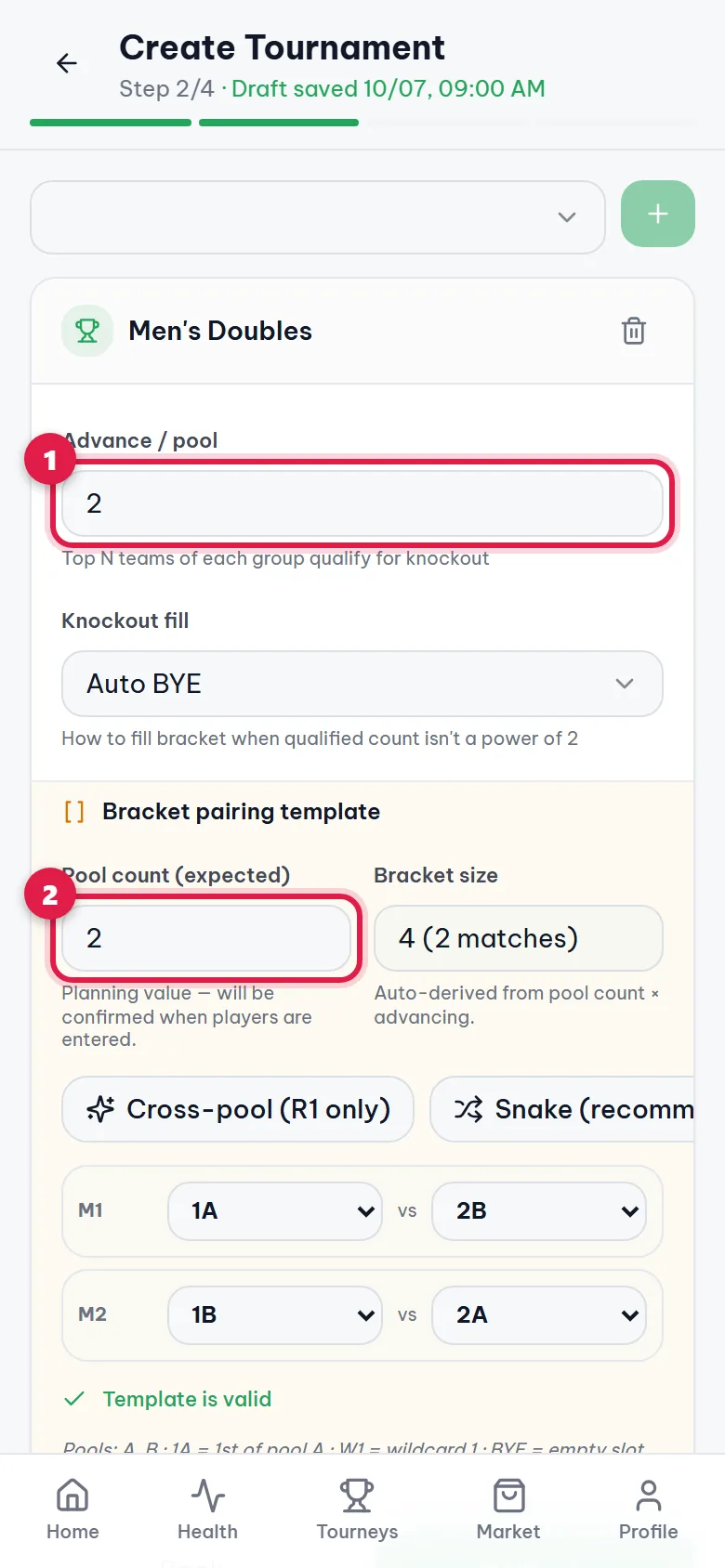
Step 4. Pick a preset
Tap a preset to fill in the pairings: Cross-pool (1) puts the winner of one pool against the runner-up of another; Snake (2) keeps the strongest teams apart until late in the bracket. If unsure, pick Snake.
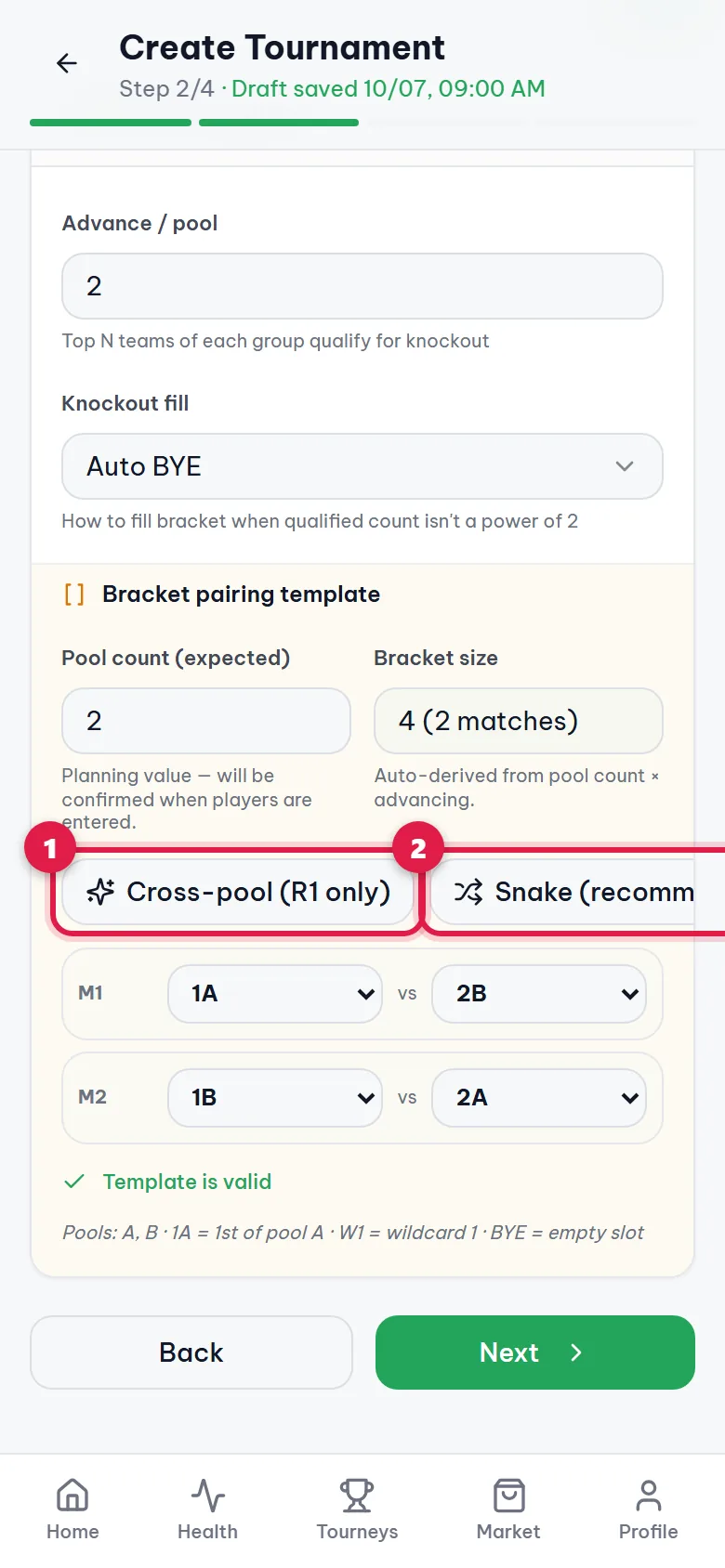
Step 5. Adjust any pairing
Each row M1, M2… is a round-1 match. Tap a box (1) to change the team: 1A = 1st of pool A, 2B = 2nd of pool B, BYE = empty slot (the opponent goes through). When you see Template is valid (2) you're done. A yellow warning icon means two teams from the same pool meet early.
Step 6. Create, then generate pools
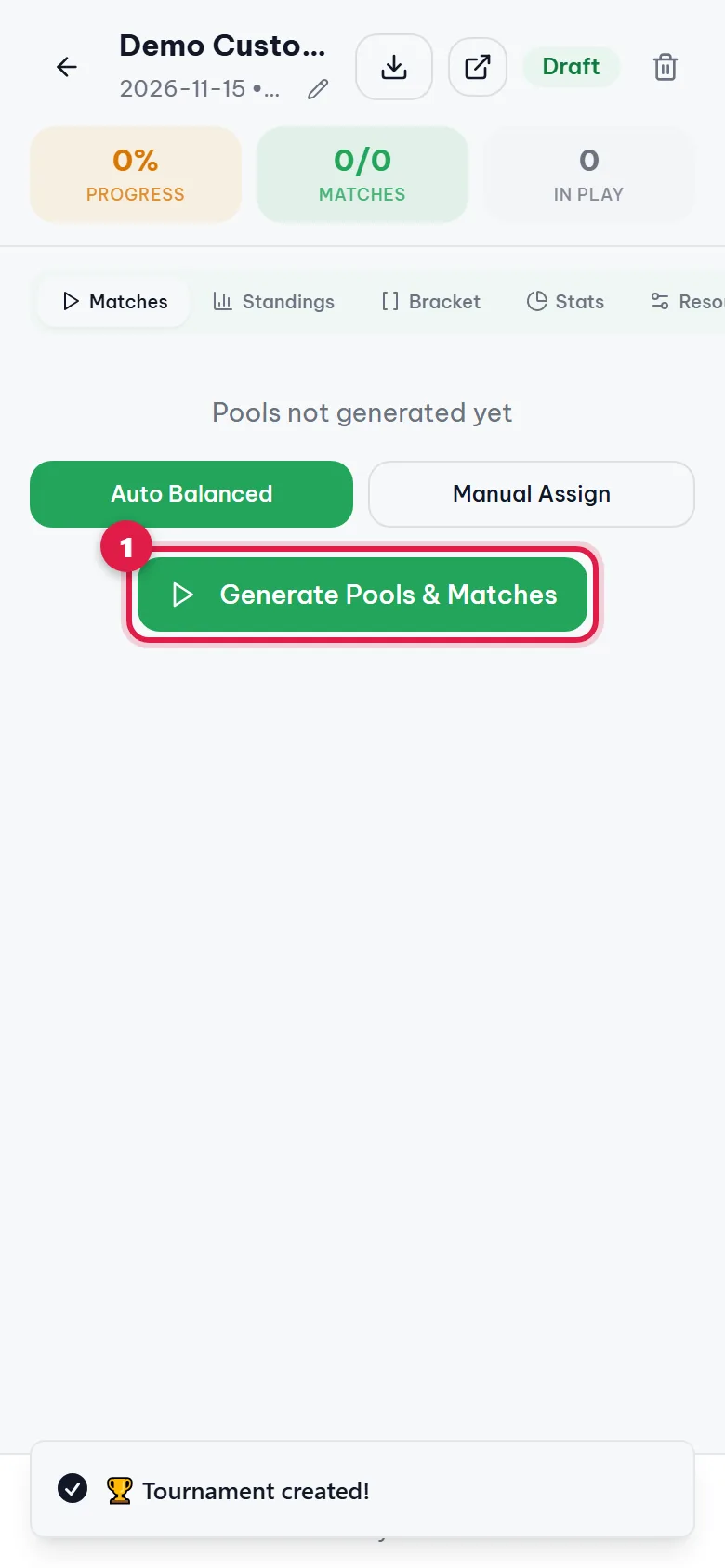
Paste the team list, tap Next, then Create Tournament as in the create guide. On the tournament management page, tap Generate Pools & Matches (1) so the app builds the pools and pool-play schedule.
Step 7. After pool play, generate the bracket
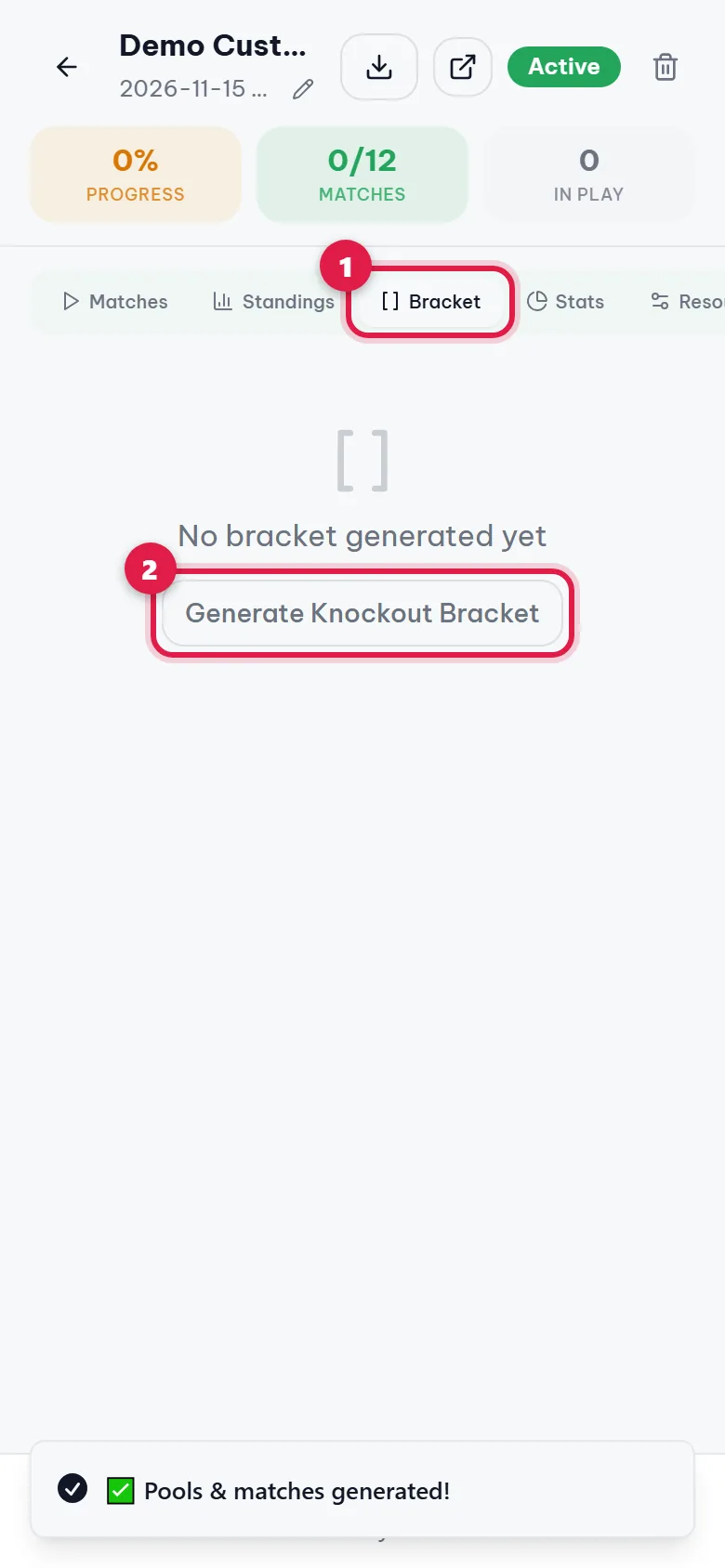
Once pool matches have results, open the Bracket tab (1) and tap Generate Knockout Bracket (2).
Step 8. Confirm
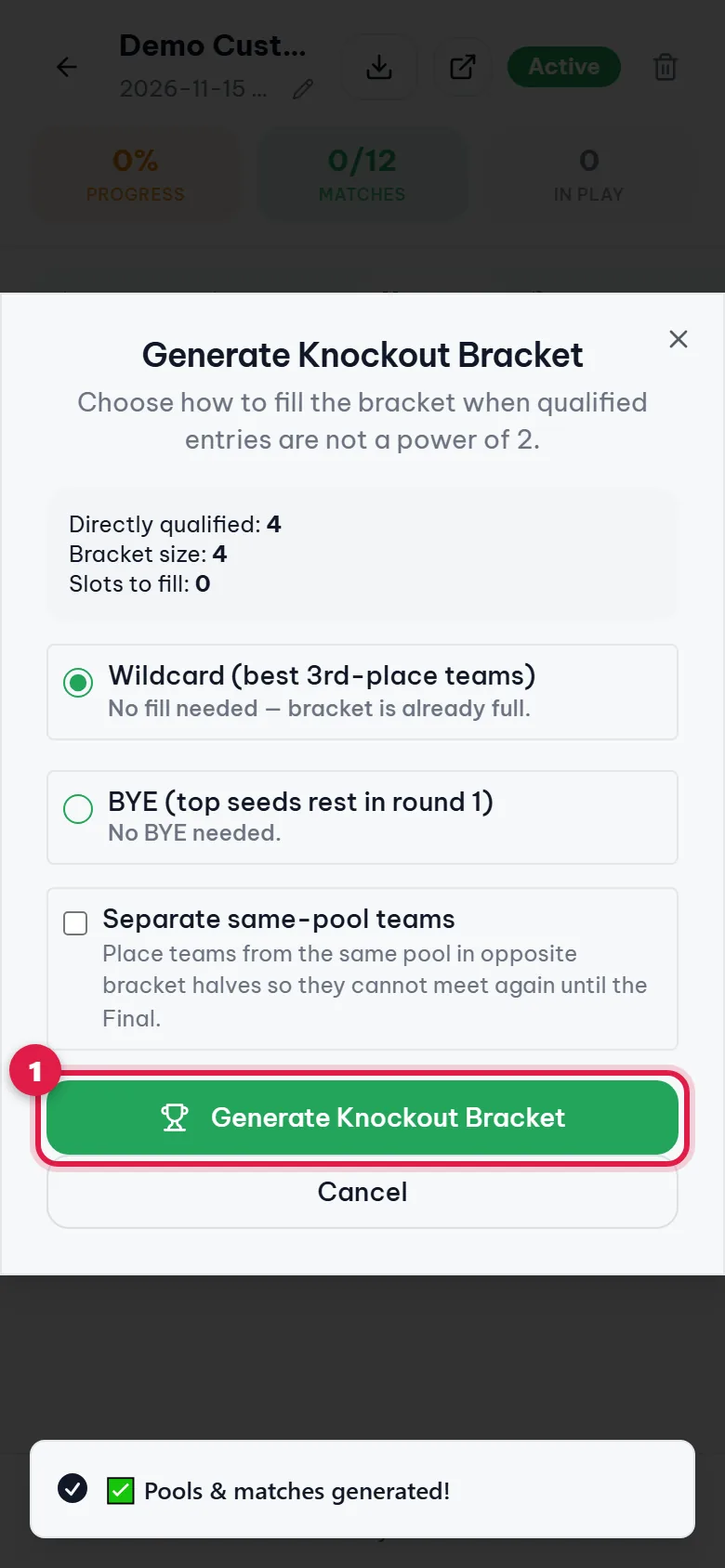
The dialog shows how many teams qualified and the bracket size. Tap Generate Knockout Bracket (1). The app takes the real standings and places teams into the pairings you set in steps 4–5.
Step 9. The bracket follows your template
Round 1 (1) shows exactly the pairings from your template, e.g. 1st of pool A vs 2nd of pool B. Later rounds follow the winners automatically.
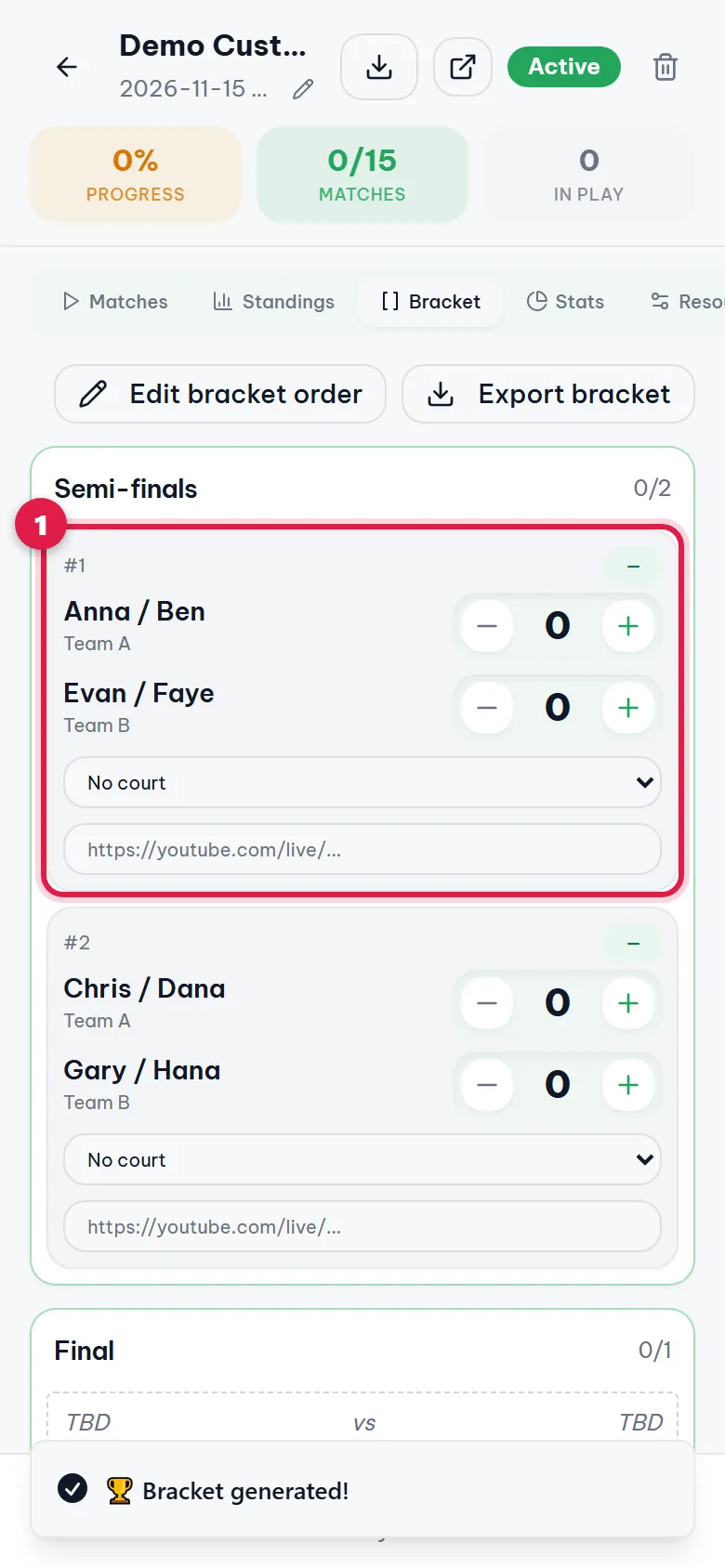
Step 10. Change the order after the bracket exists
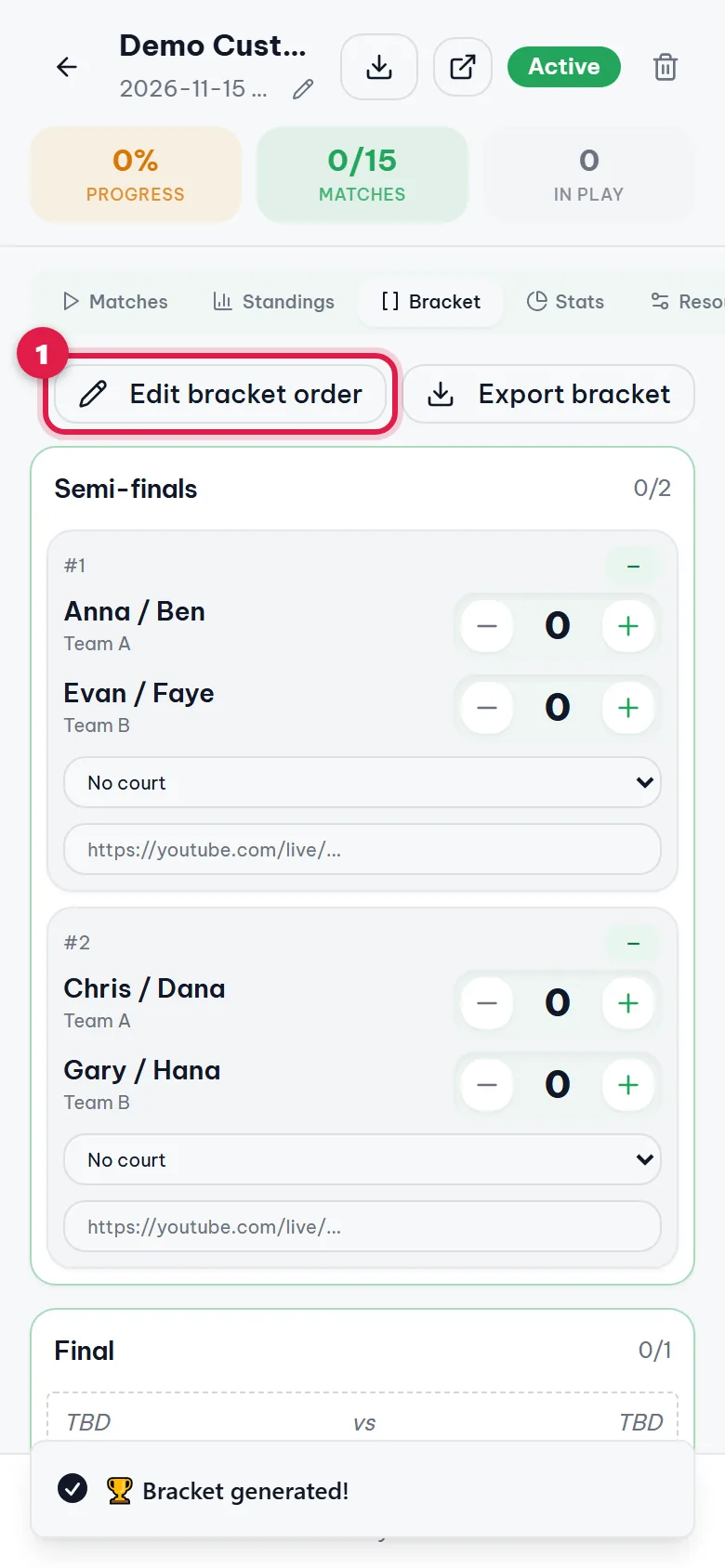
This works for any bracket, including ones seeded with Auto seed. In the Bracket tab, tap Edit bracket order (1).
Step 11. Tap two slots to swap
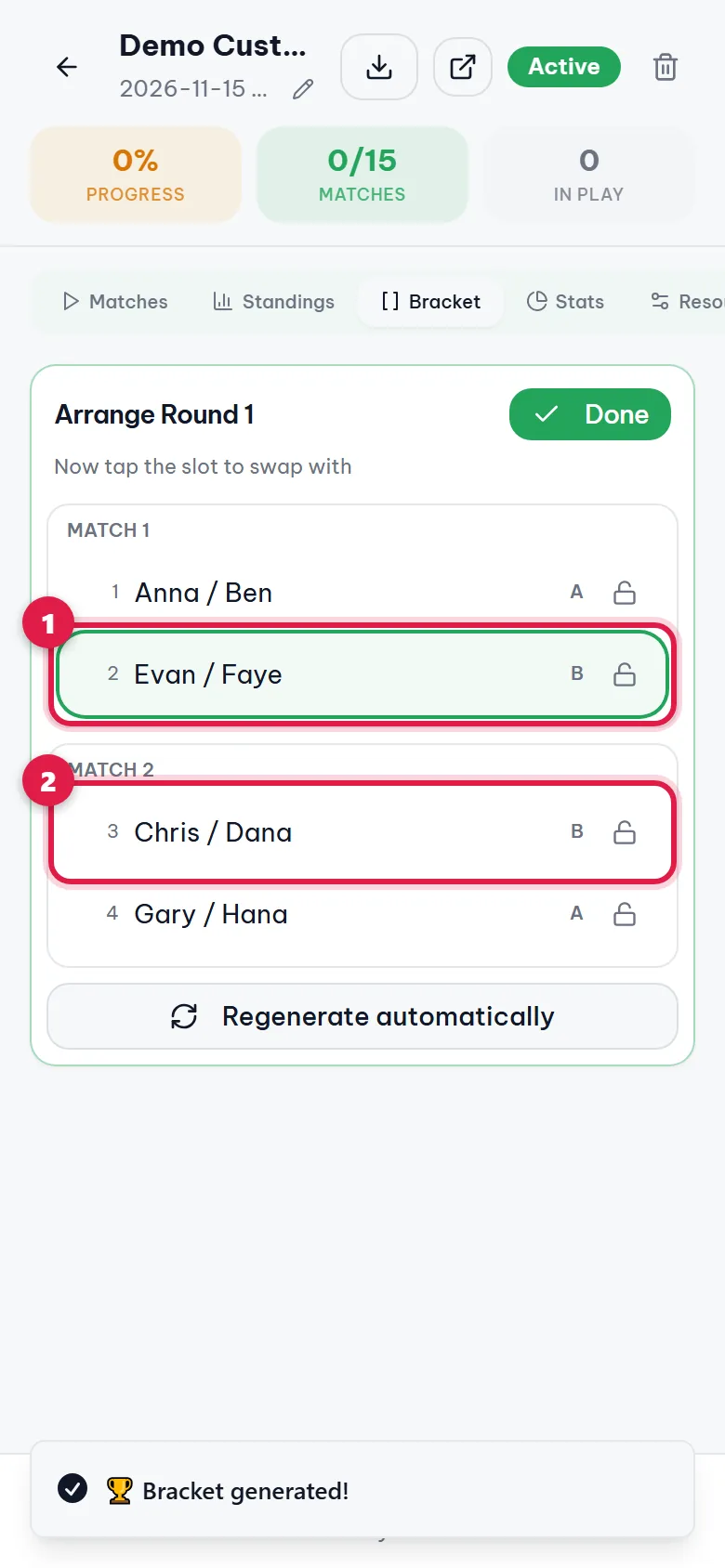
Tap the team you want to move (1, highlighted), then tap the slot to swap with (2). The two teams switch places immediately. On a computer you can also drag and drop. If two teams from the same pool now meet, a Same pool label appears.
Step 12. Lock a seed
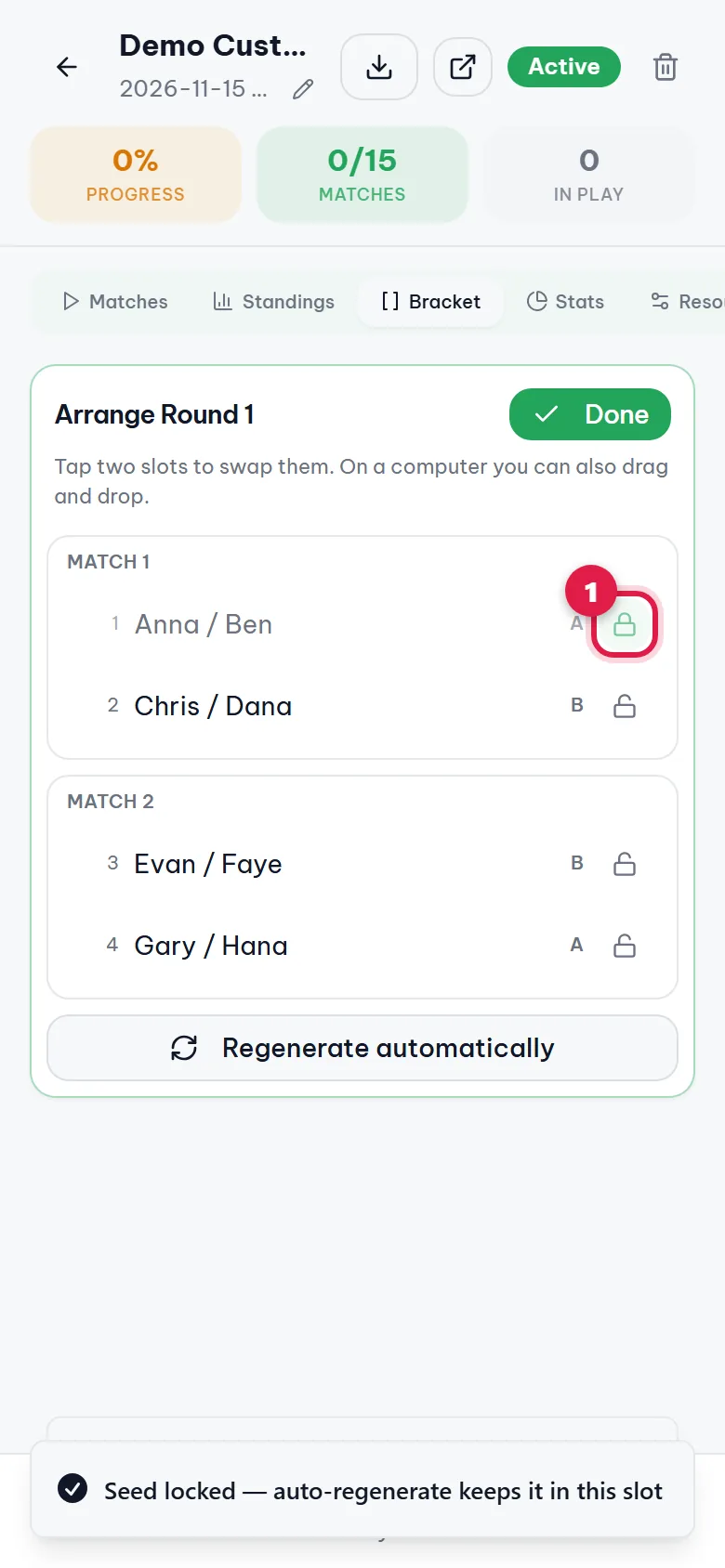
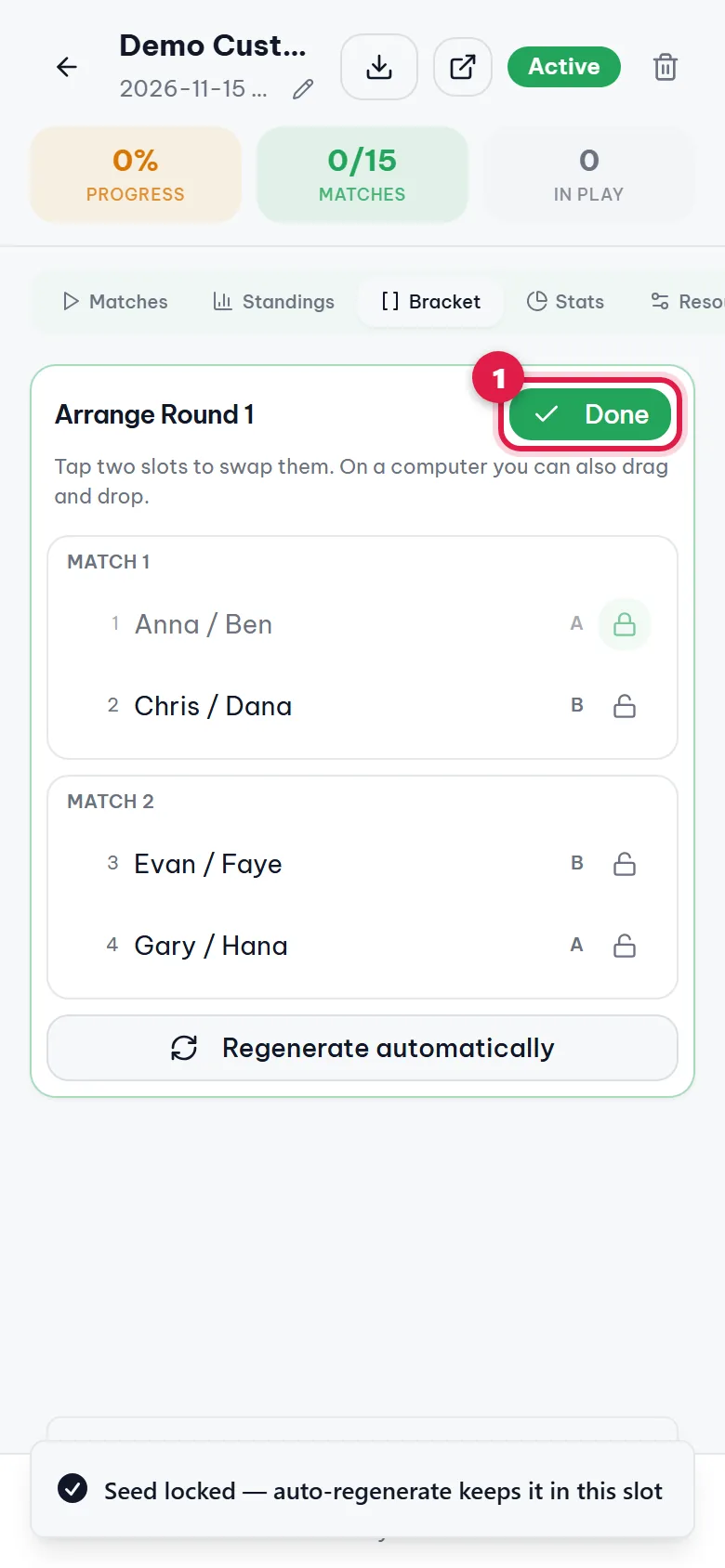
Tap the lock icon next to a team (1) to lock it in its slot. If someone later taps Regenerate automatically, locked teams stay where they are.
Step 13. Tap Done
When the order looks right, tap Done (1) at the top.
Step 14. All set
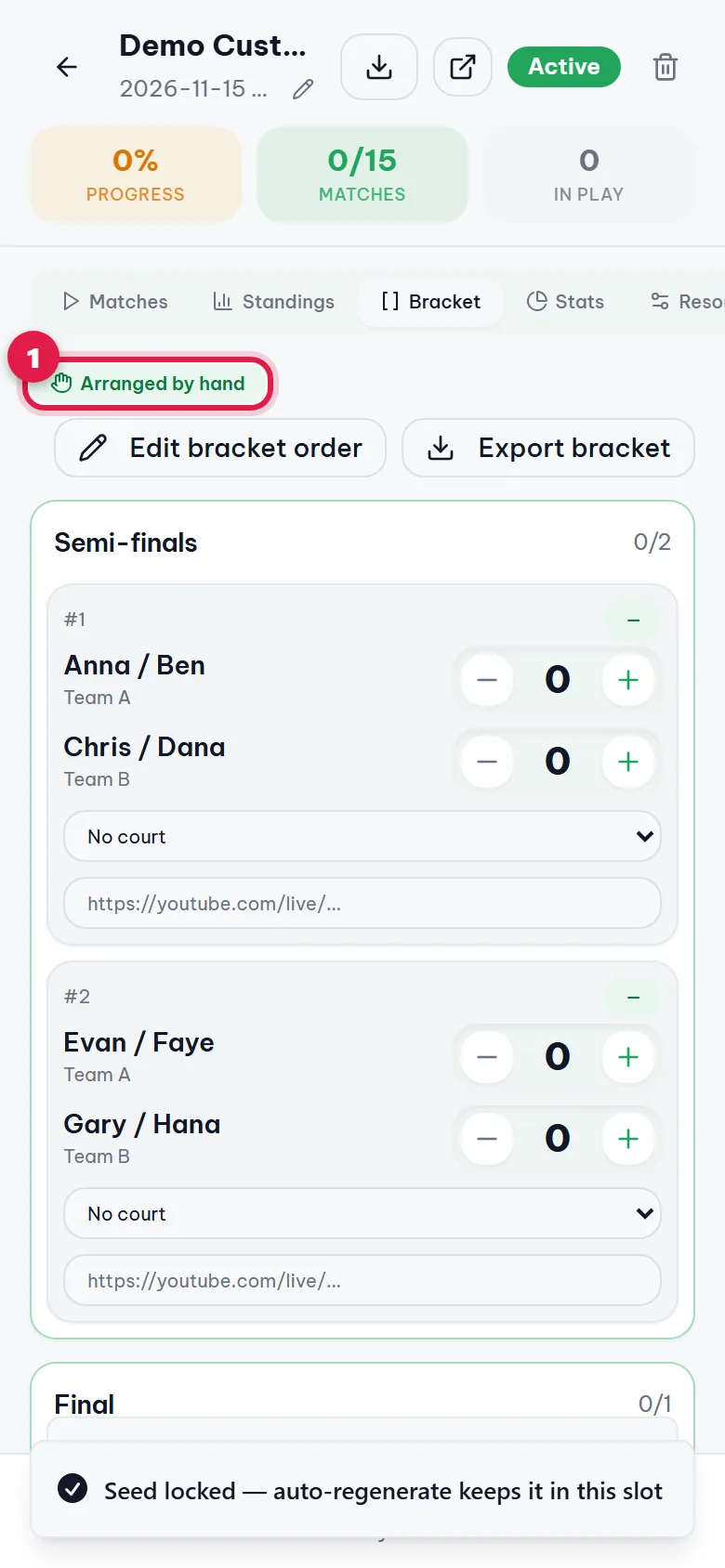
The bracket now shows Arranged by hand (1). Spectators and referees see the new order right away.
FAQ
Template, or Auto seed and then edit by hand?
If you know the pairings in advance (e.g. the rules say 1st A plays 2nd B), choose Template when creating the tournament and the app places teams correctly as soon as pool play ends. If there's no fixed plan, keep Auto seed and use Edit bracket order to fix anything once the bracket exists.
I chose Template but didn't tap a preset. What happens?
The app uses the Snake pairings shown on screen. It's still worth checking each M1, M2… row before tapping Next.
The swap doesn't work?
Matches that have already started can't be changed, so results stay correct. If a slot shows a lock, unlock it first.
Will Regenerate automatically wipe my order?
The app warns you before overwriting. Locked teams keep their slots; the rest are re-seeded. Once a knockout match has started, the bracket can no longer be regenerated.
The template shows a red error?
Read the message: usually a slot is used twice, or a 3rd-place team is picked when only 2 advance per pool. Fix that box, or tap Snake / Cross-pool again to refill everything.
Screenshots and text updated 07/10/2026