
How to create a pickleball tournament on DinkDink
Step-by-step guide to creating a pickleball tournament on your phone: tournament details, events, pasting the player list and adding referees. Every button circled in red.
- Open Tourneys
- Tap Create
- Enter name, date and location
- Choose the format
- Go to step 2
- Choose an event
- Add the event
- Go to step 3
- Paste the players or teams
- Go to step 4
- Add referees
- Create the tournament
- Done! Your tournament is created
This guide shows how to create a pickleball tournament on your phone, from opening the app to a tournament ready for pools. Every step has a screenshot; the numbered red boxes show exactly where to tap or type.
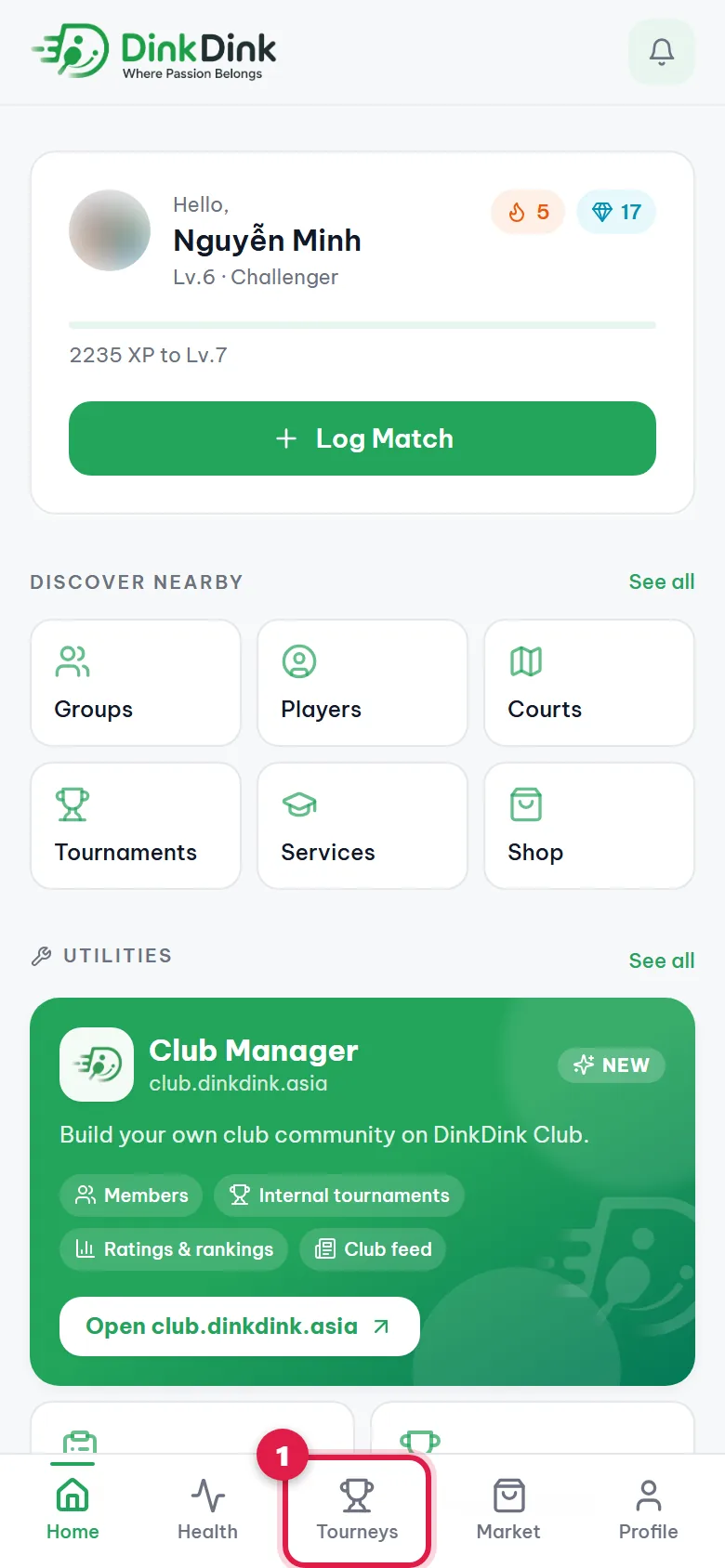
Step 1. Open Tourneys
Open app.dinkdink.asia on your phone and sign in. In the bottom bar, tap Tourneys (1).
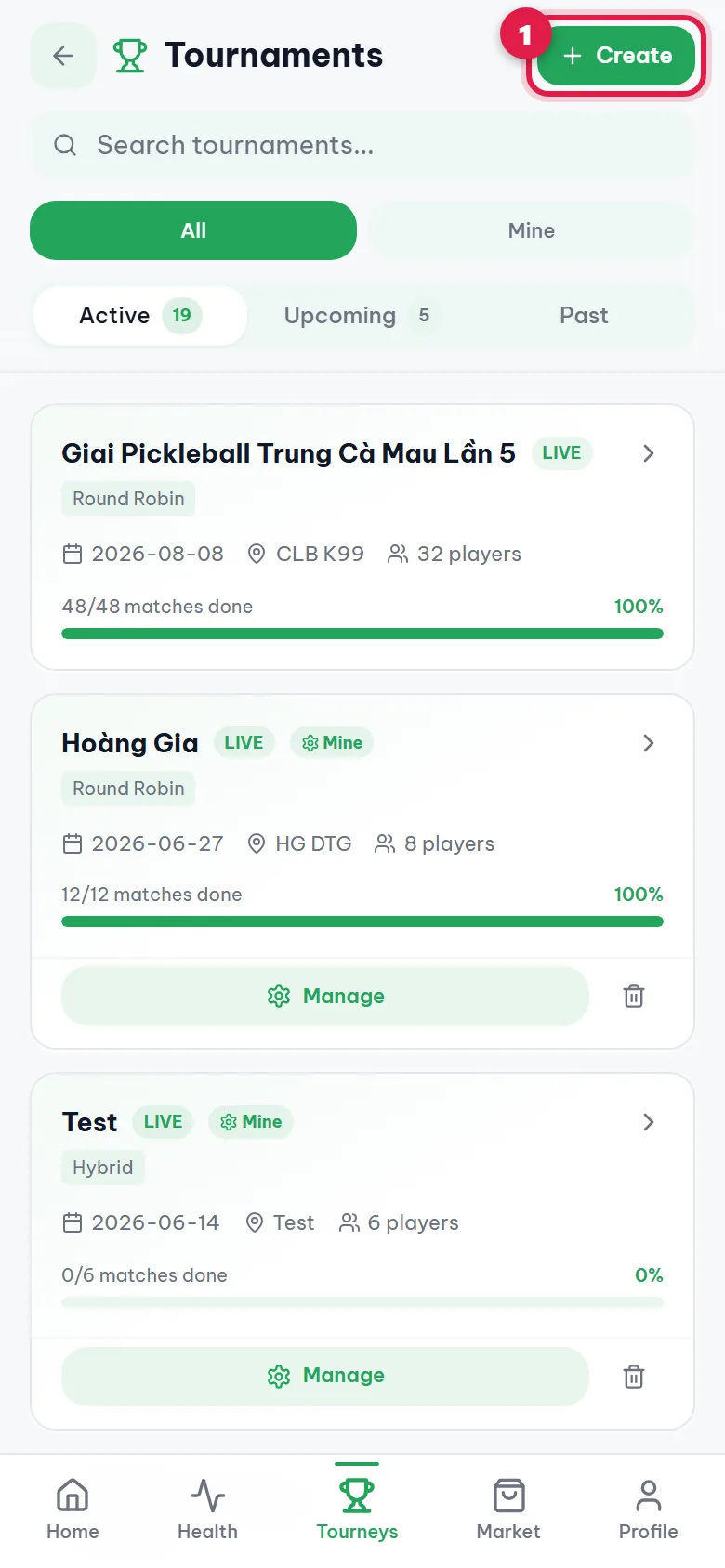
Step 2. Tap Create
Tap the green Create button at the top right (1). If you don't see it, your account doesn't have organizer access yet.
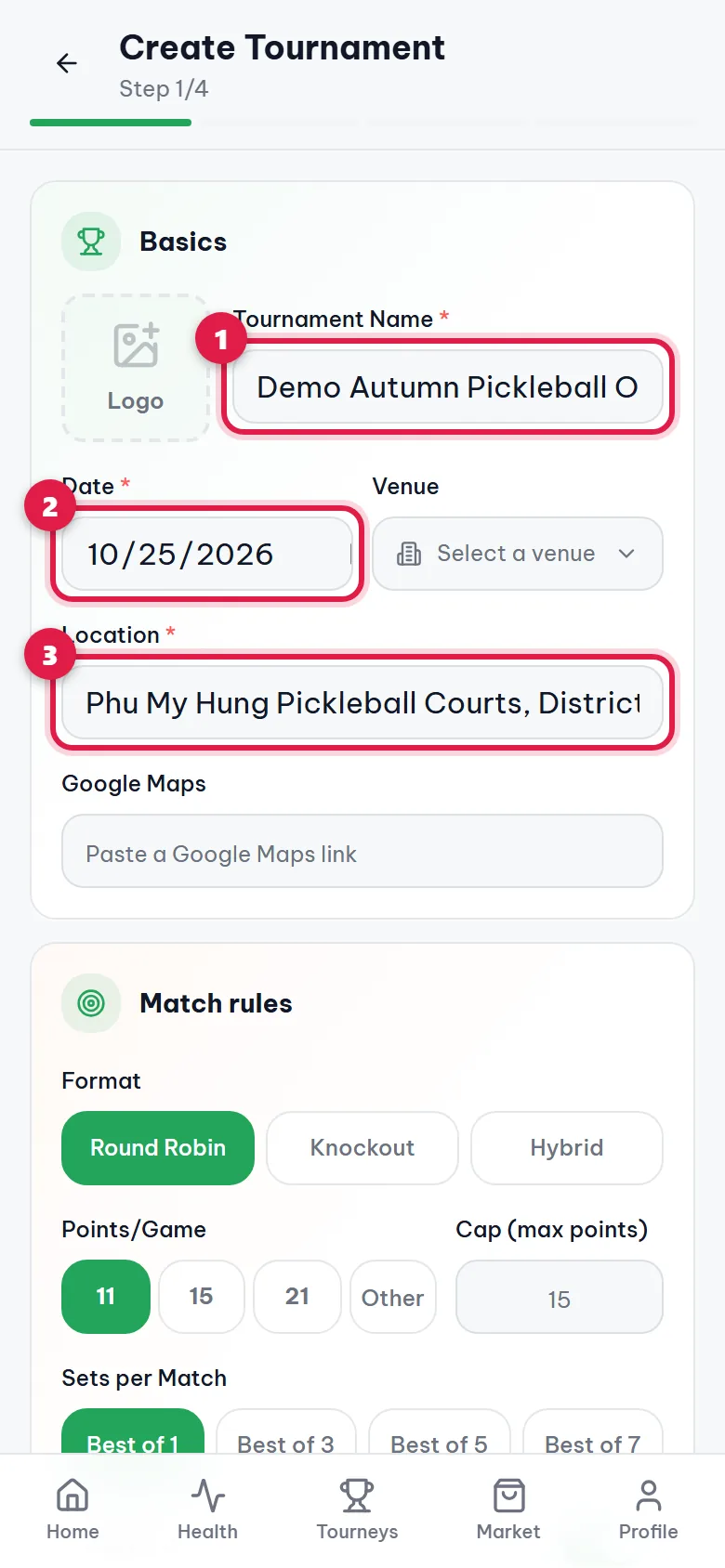
Step 3. Enter name, date and location
Type the Tournament Name (1), pick the Date (2) and type the Location (3). Logo and Google Maps are optional. If the venue is already on DinkDink, tap Select a venue to fill in the address.
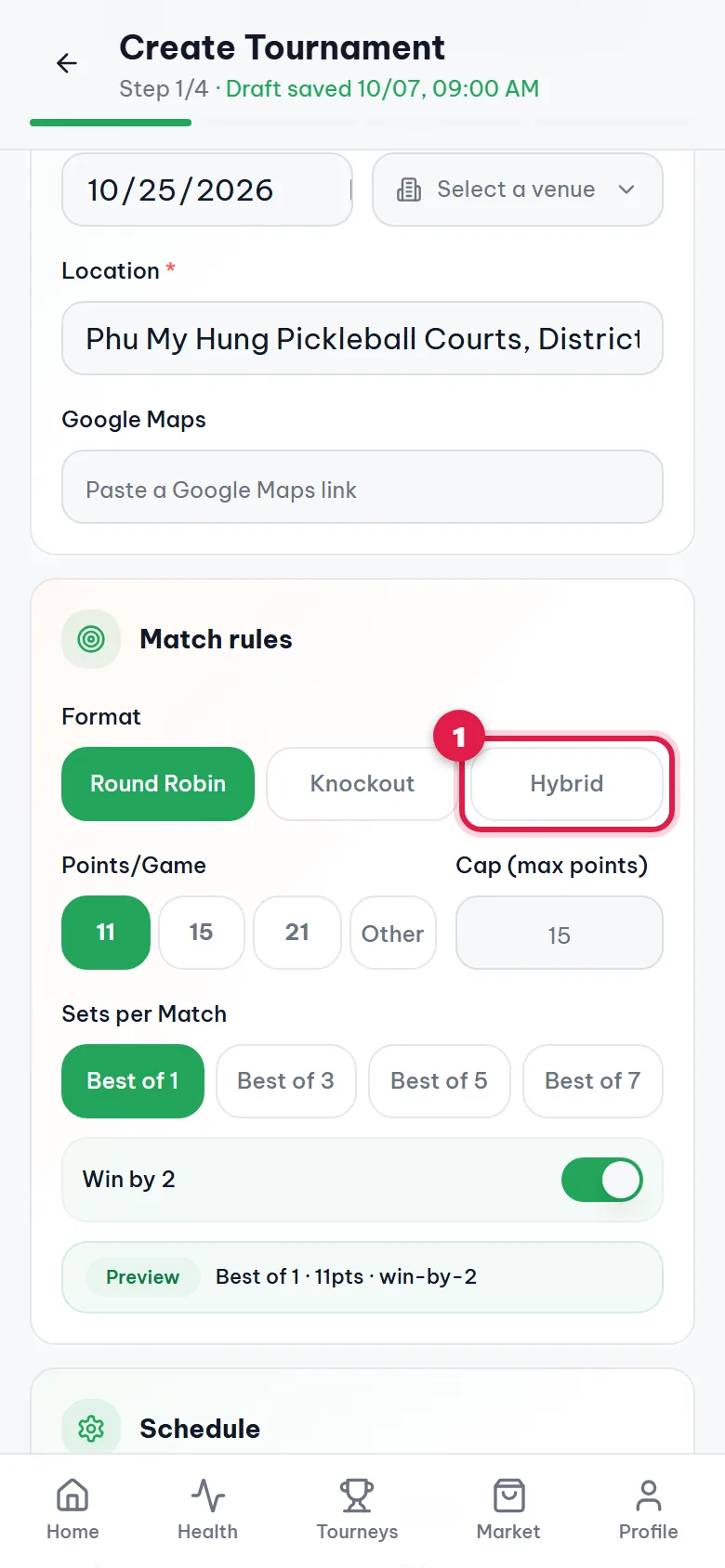
Step 4. Choose the format
Pick the format (1): Round Robin (everyone plays everyone), Knockout (lose and you're out) or Hybrid (pool play, then a knockout bracket). Keep 11 points per game unless you need something else.
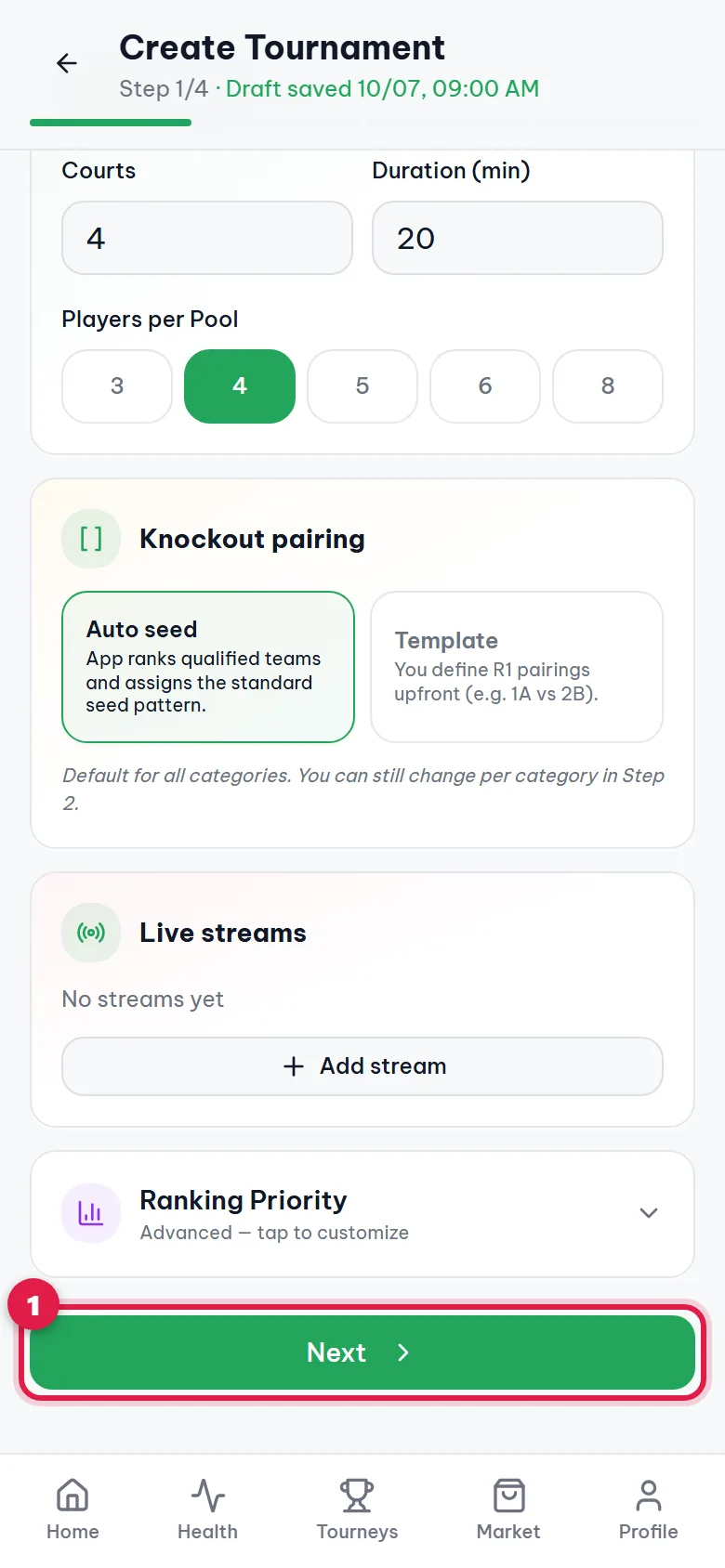
Step 5. Go to step 2
Scroll to the bottom and tap Next (1).
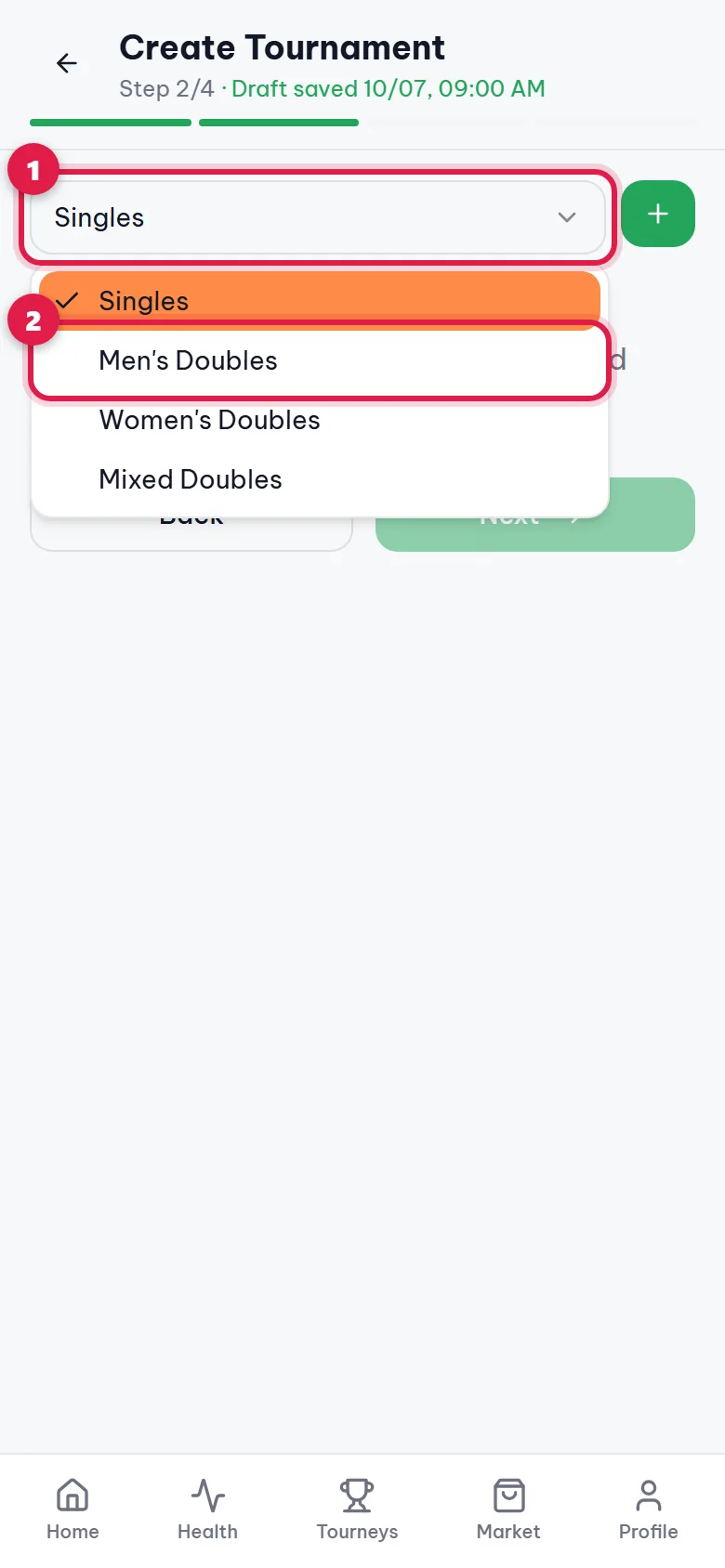
Step 6. Choose an event
Tap the dropdown (1) and choose an event, for example Men's Doubles (2).
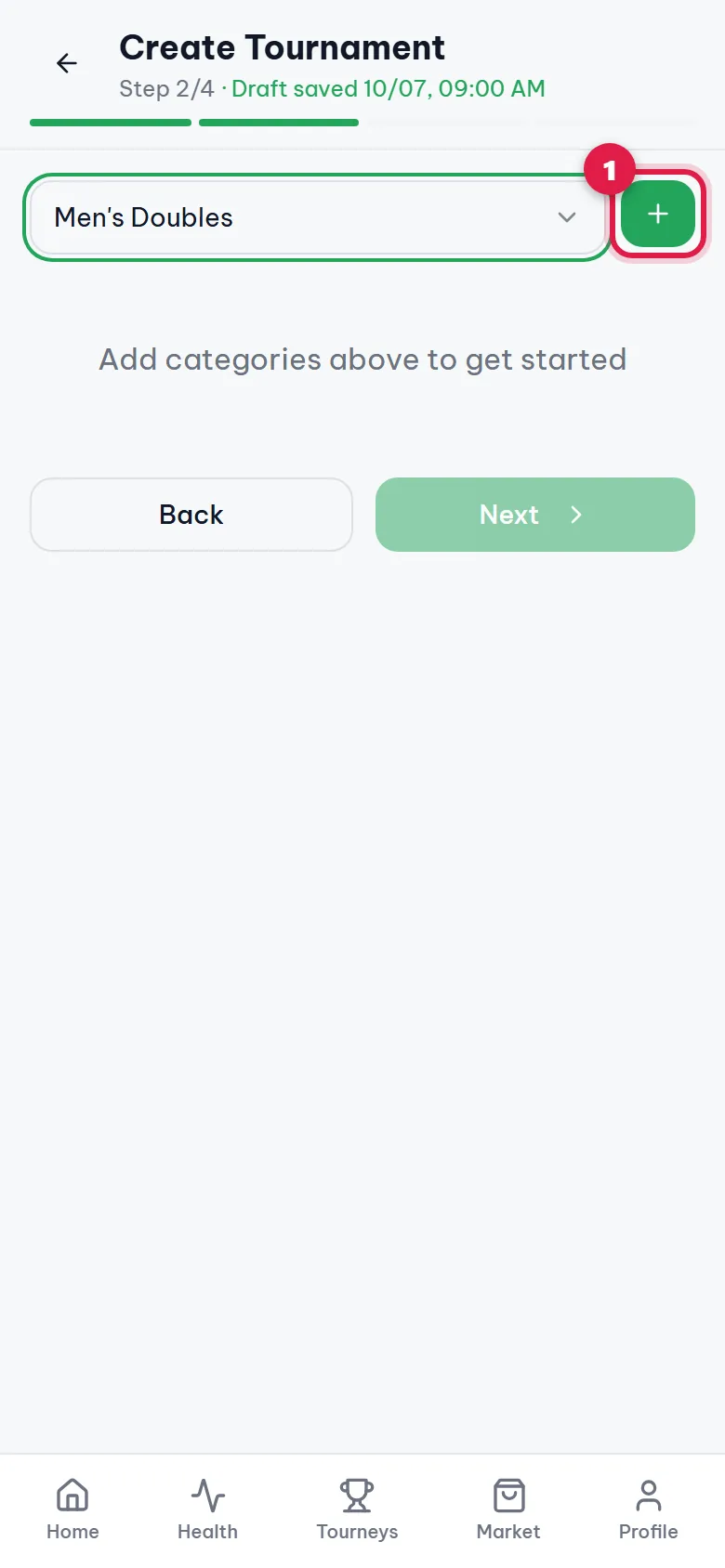
Step 7. Add the event
Tap the green + button (1). For more events (men's, women's, mixed doubles), repeat steps 6 and 7 for each one.
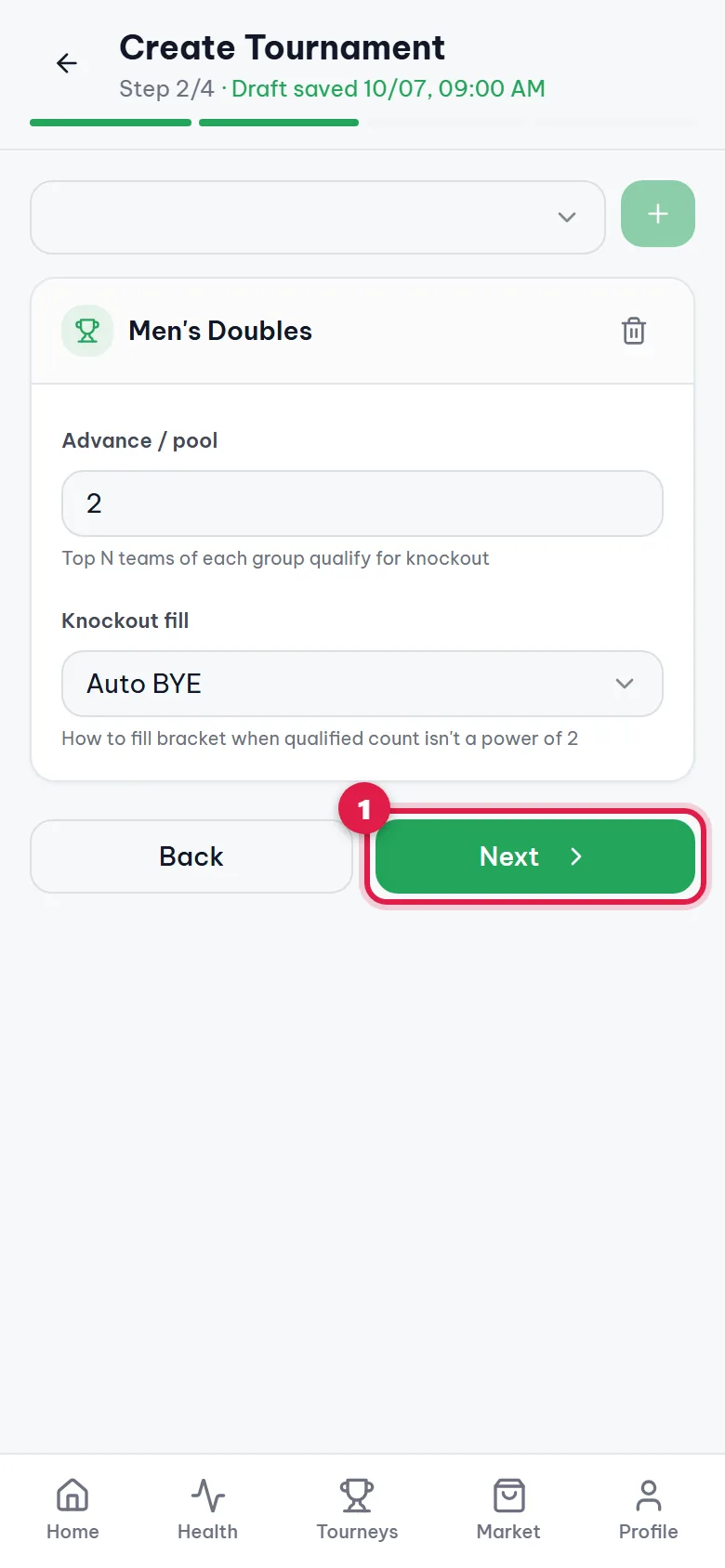
Step 8. Go to step 3
Tap Next (1).
Step 9. Paste the players or teams
Paste the list into the box (1), one player or team per line. For doubles, put both names on one line, e.g. Anna / Ben. Each event needs at least 3 lines. The count at the top right helps you check.
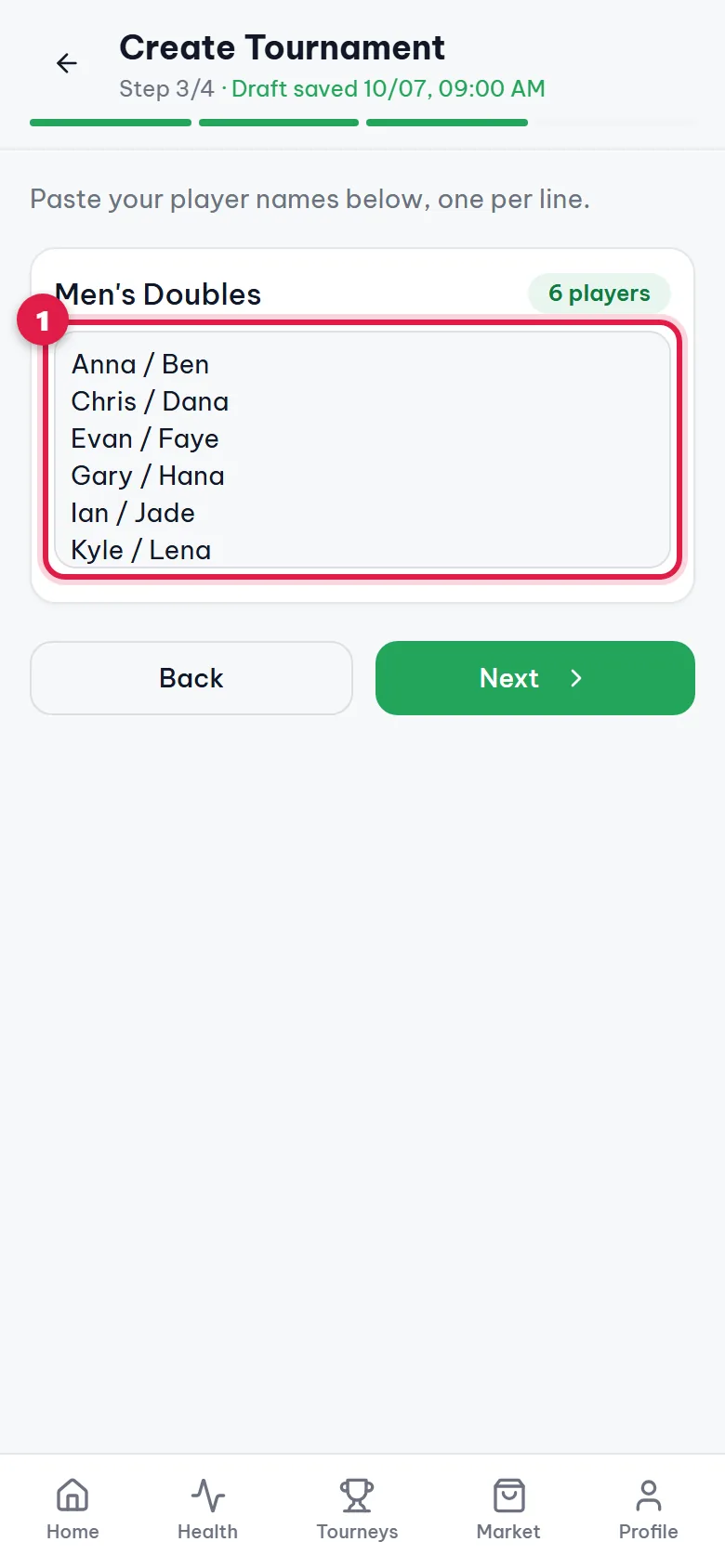
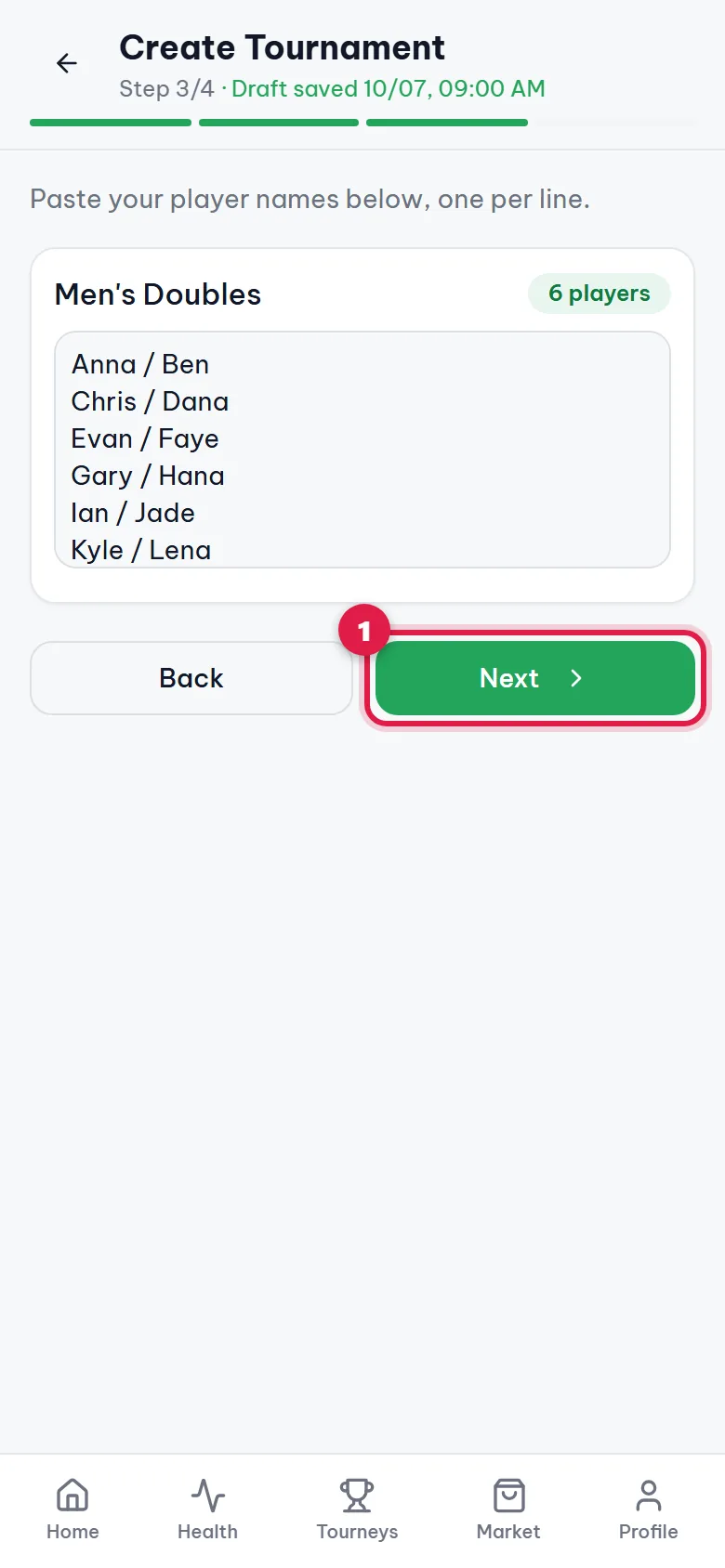
Step 10. Go to step 4
Tap Next (1).
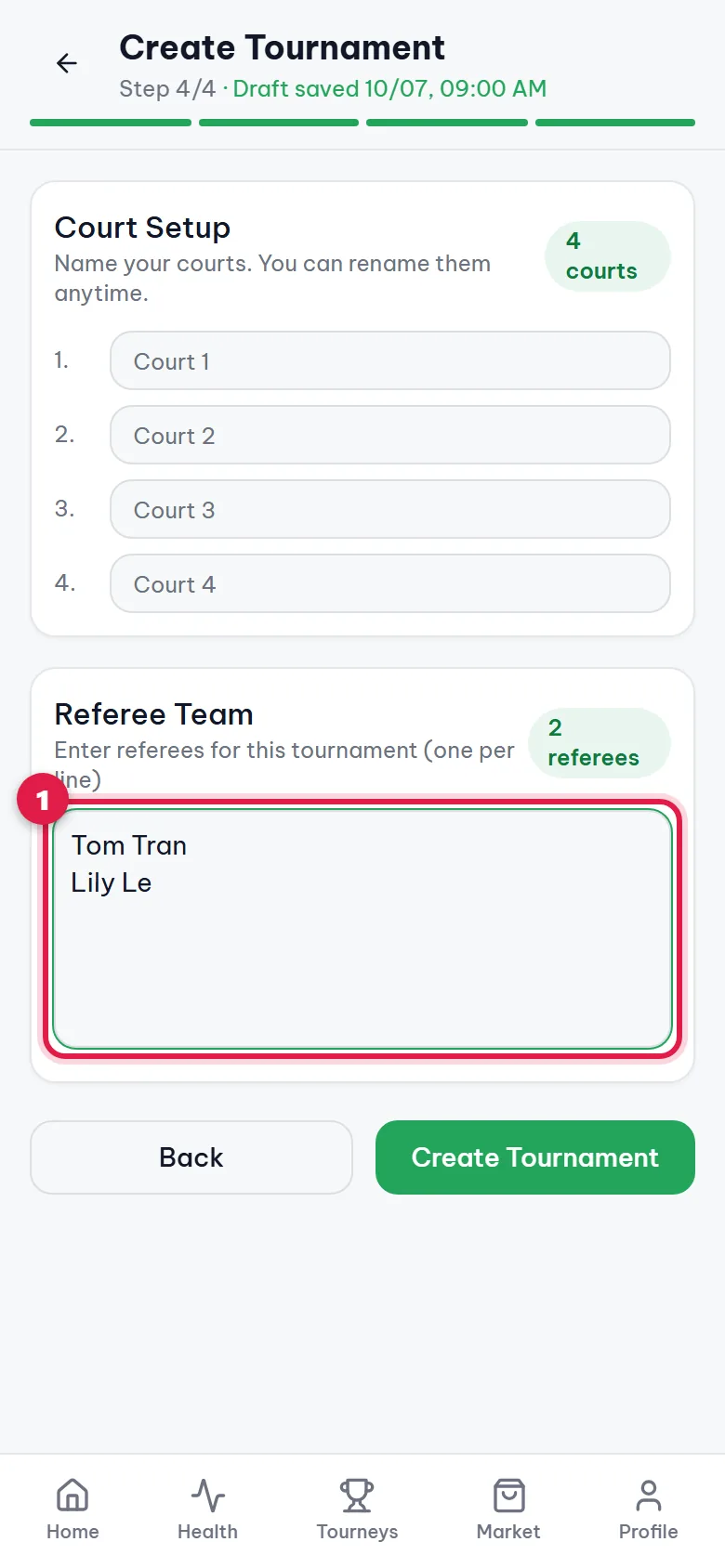
Step 11. Add referees
Type the referee names in the box (1), one per line. Courts above are named Court 1, Court 2… automatically; type over them to rename. This step is optional and can be done later.
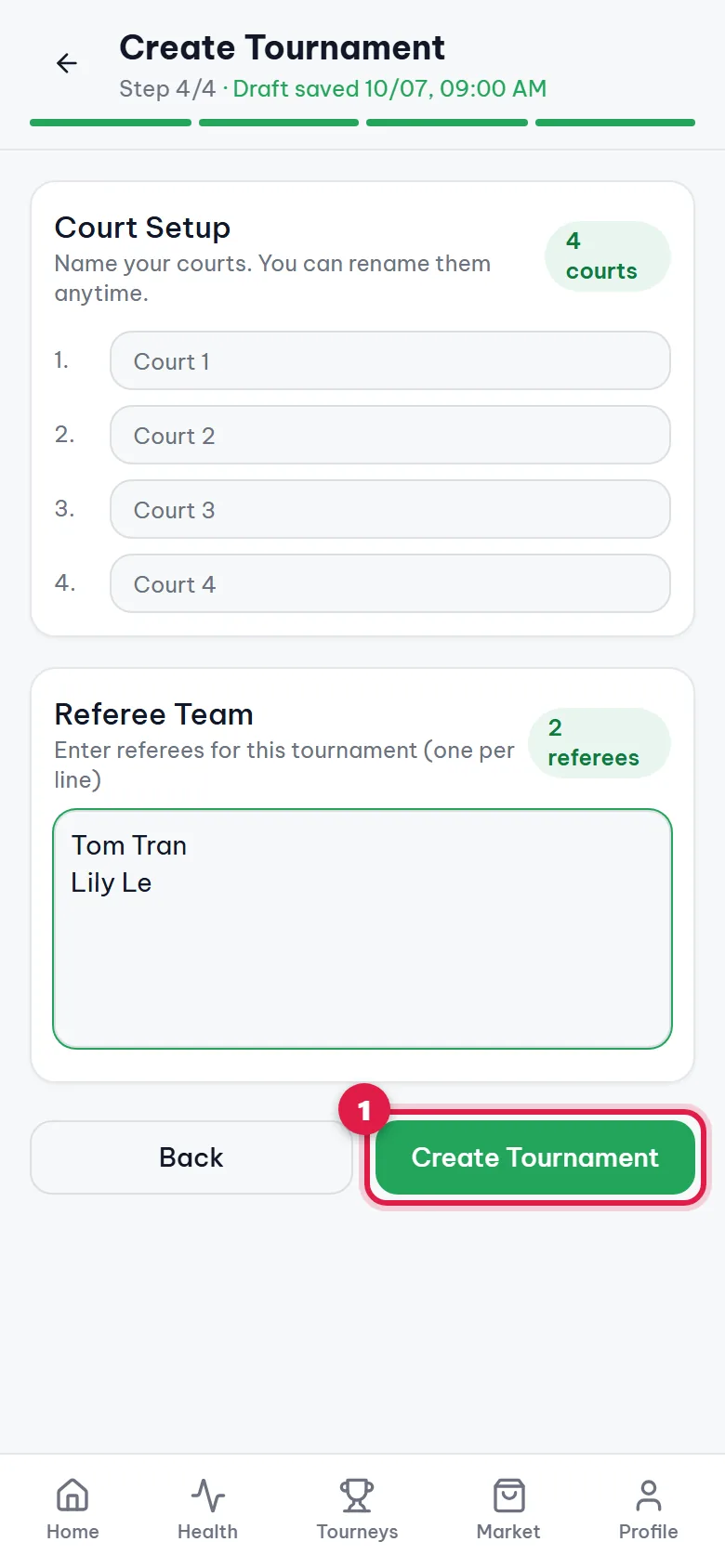
Step 12. Create the tournament
Tap Create Tournament (1).
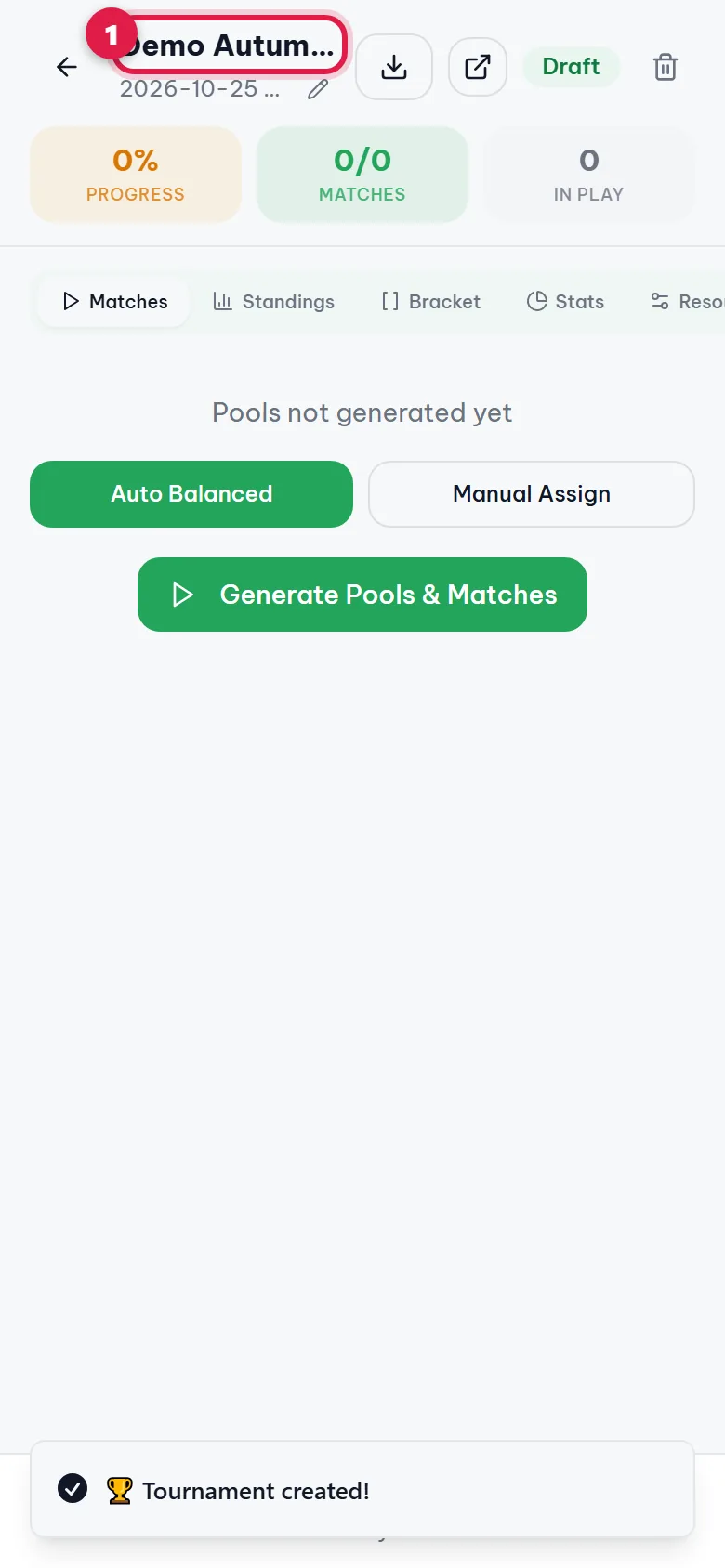
Step 13. Done! Your tournament is created
The app shows Tournament created! and opens the tournament control page (1 is the tournament name). It starts as a Draft. Next, tap Generate Pools & Matches to let the app build pools and the schedule.
FAQ
What if I leave halfway through?
Nothing is lost. The app saves your unfinished tournament on this device (you will see "Draft saved" at the top). Open Create again and tap Continue to pick up where you left off, or Start over. The draft stays on the device you used.
I don't see the Create button
Your account doesn't have organizer access yet. Message +84 978 515 262 on Zalo or WhatsApp with your sign-in email and the DinkDink team will enable it.
How do I fix a typo in a player name?
Before tapping Create Tournament, tap Back to return to step 3 and edit the box. After creating, open the Players tab on the tournament control page.
How do I enter doubles teams?
One team per line, with the two names separated by a slash, e.g. Anna / Ben.
Can I set the knockout pairings myself?
Yes. Choose Template under Knockout pairing when creating the tournament, or use Edit bracket order once the bracket exists. See Set your own knockout bracket: dinkdink.asia/en/guides/custom-knockout-bracket/
Screenshots and text updated 06/10/2026